
Want to get the most out of your sticker?
Commonly used for sticker business cards or sticker sheets, designing for the Excess Space will unlock all the potential of kiss cut stickers!
Pick and choose where you want the kiss cut lines on your business cards! You can either include in the notes of your order where you’d like the cutlines or you’re welcome to add your own cutlines in a PDF file!
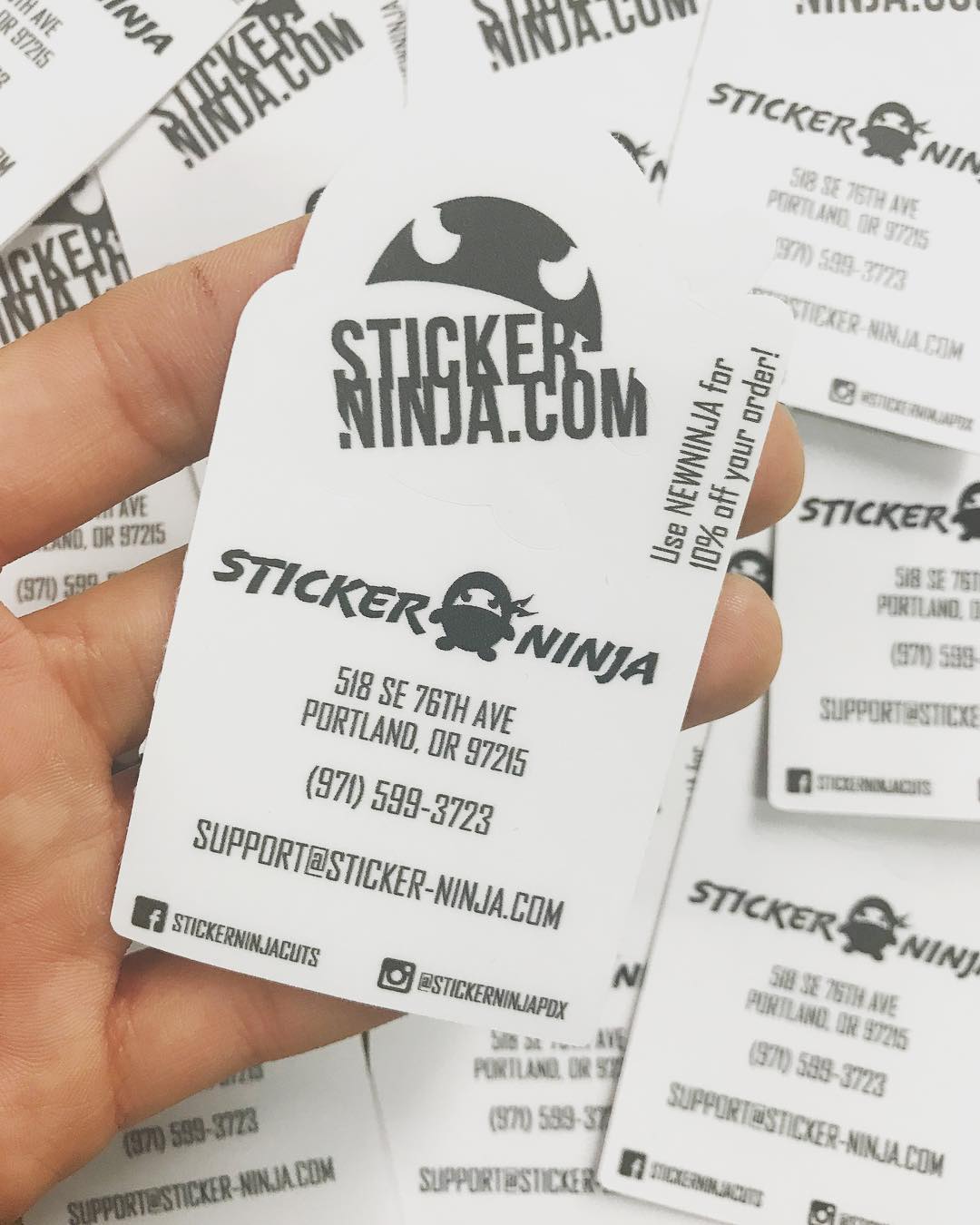
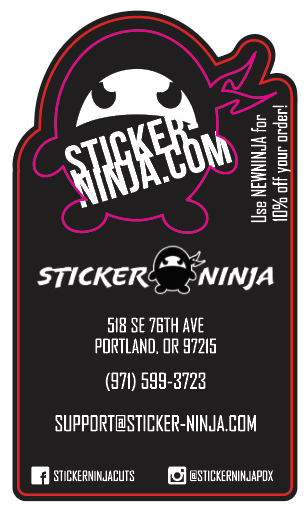
Left: Sticker Ninja business cards | Right: the cutlines for the sticker. Pink indicates the kiss cut, and the red is the die cut.
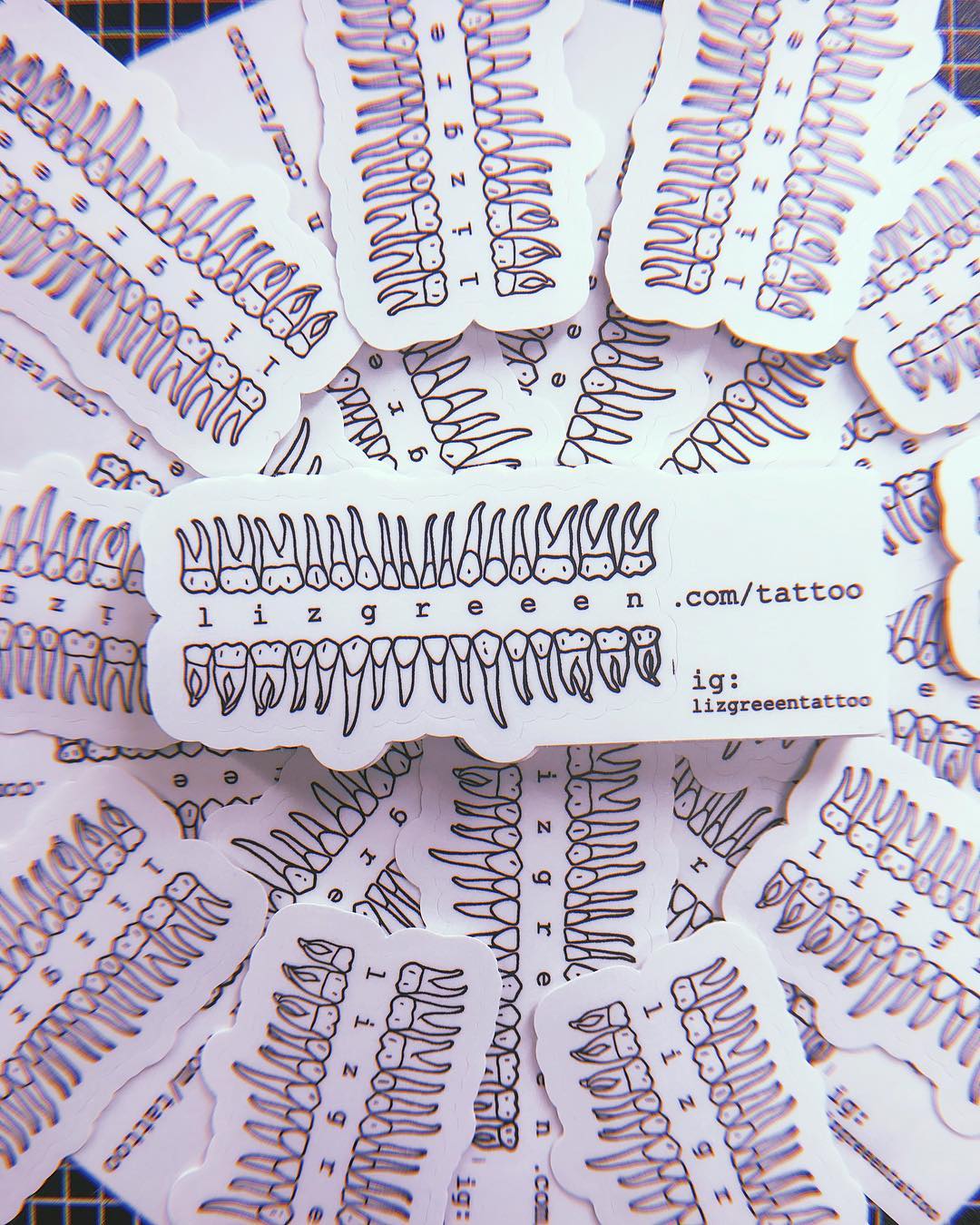
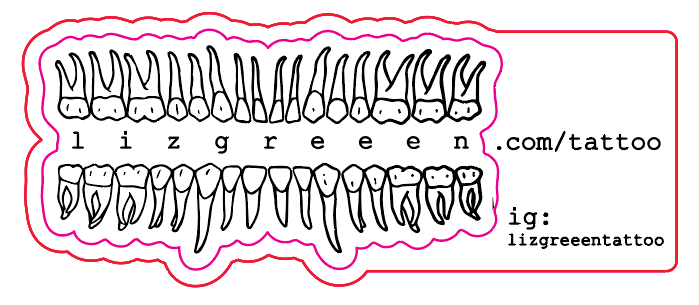
Left: Finished business cards | Right: the cutlines for the sticker. Pink indicates the kiss cut, and the red is the die cut.
The same method can be applied to sticker sheets! Pick and choose where you want the kiss cut lines, and place information or background artwork in the Excess Space.
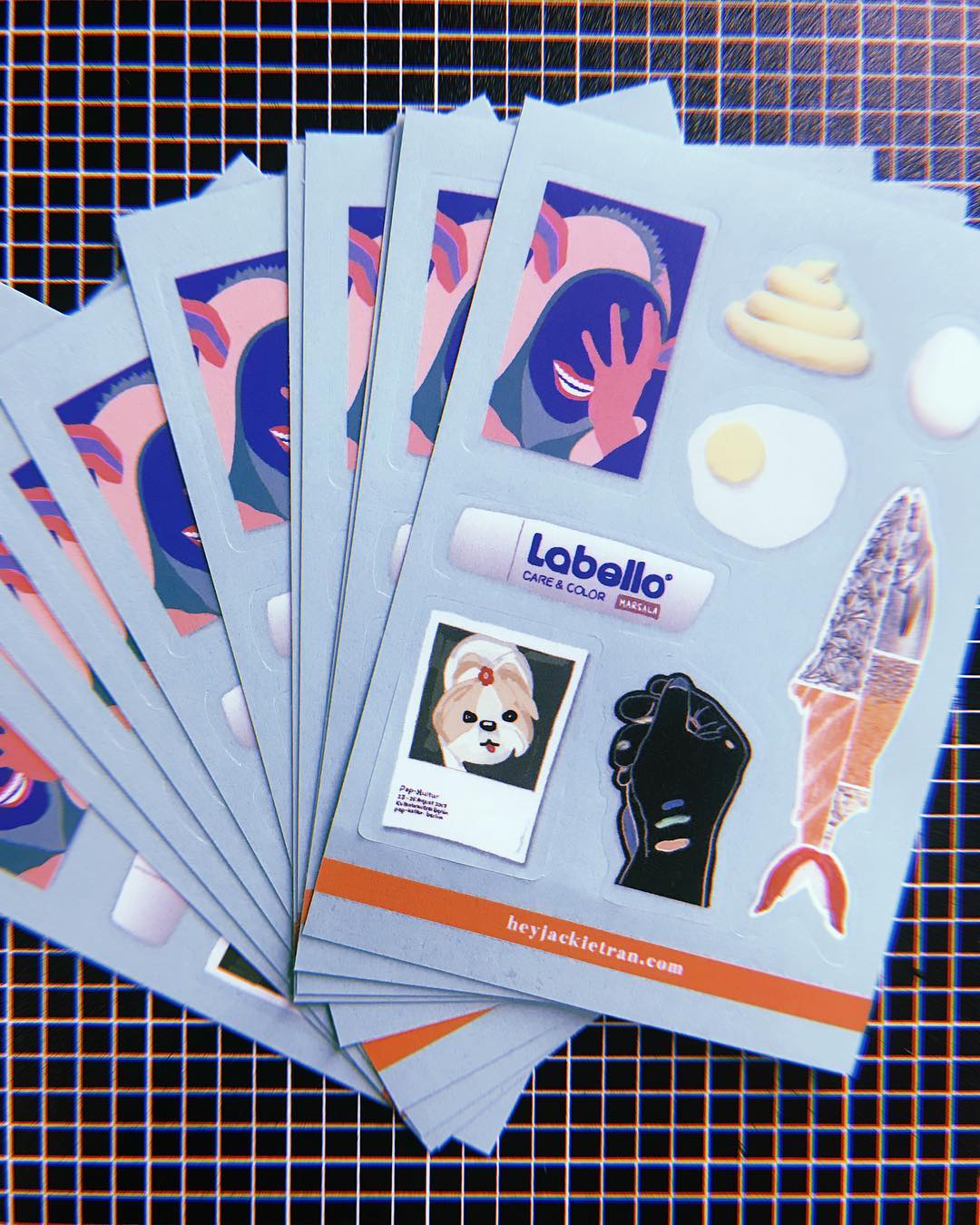
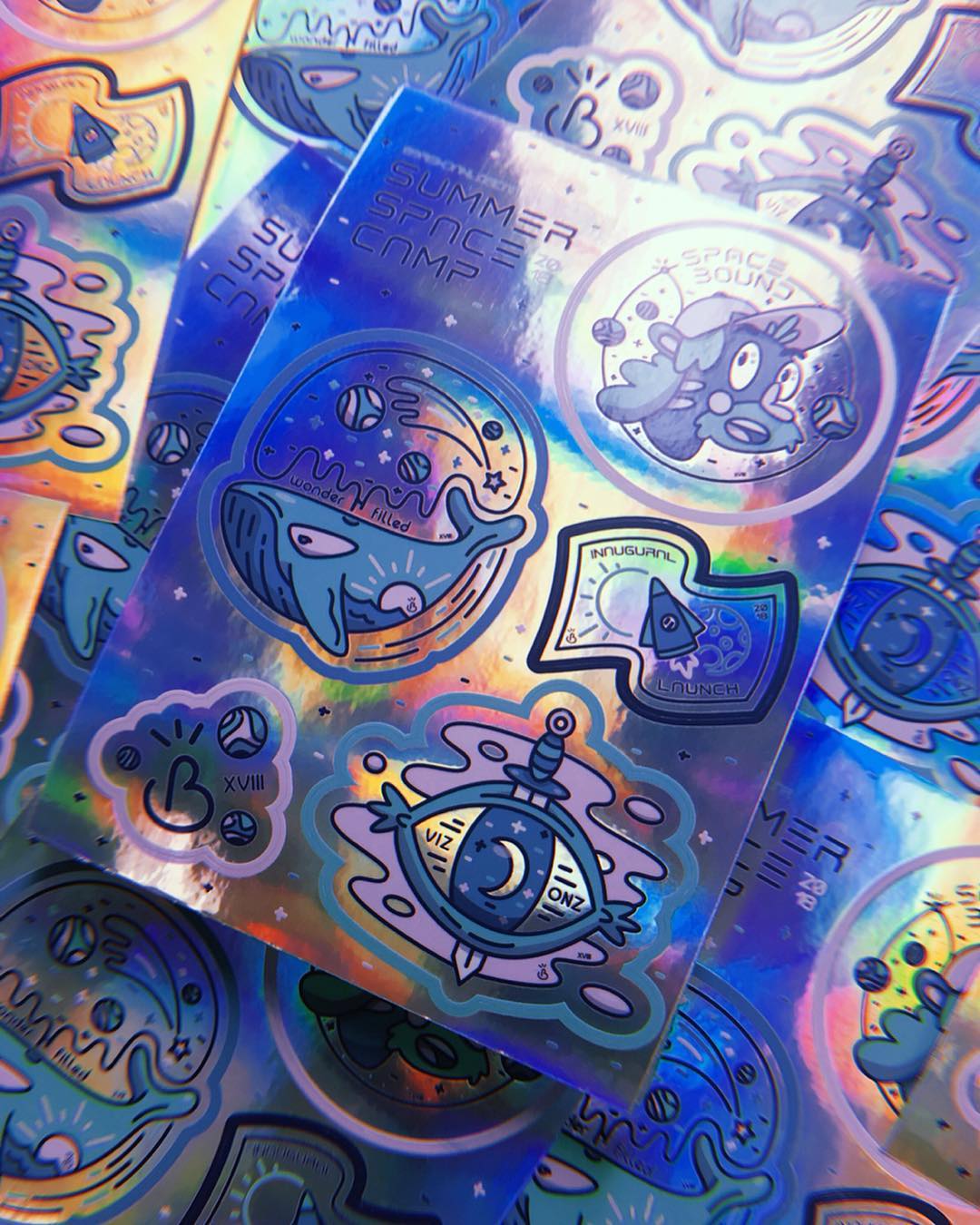
Left: Include your contact information in the excess space | Right: enhance your sheets with background images
Expand your fonts! How to be a next level designer.PDFs are one of our favorite ways to accept artwork!
They retain all the vector information, making it easy for us to add cutlines to your artwork, or change any of the existing colors of your artwork to any desired spot color.
One of the downsides of accepting PDFs is that if we don’t have your font in our system we get the lovely “Missing Fonts” alert pops up.
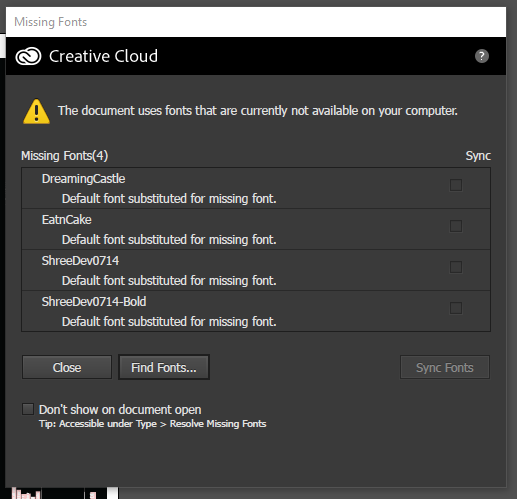
“What the heck are missing fonts?” you might be asking yourself and that’s a wonderful question to ask! If your graphic includes any specialty fonts, fonts you have downloaded or even fonts special to Macintosh or Window computers, then when sending over a PDF or AI file there’s a good chance our computers aren’t going to have those fonts already saved. Here’s where you can be a next level designer and learn how to expand your fonts!
What exactly is an “expanded font”?
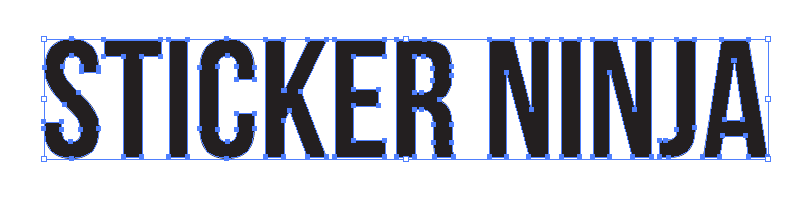
An expanded font, also known as an outlined font, is when you take your existing live text and turn it into a shape. Shapes within your file are great because they can easily be shared from computer to computer!
Let’s show an example! Behold, our existing live text in our AI file:
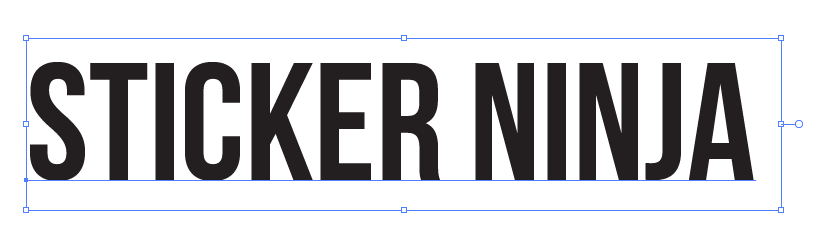
Now we right click on the text and select “Create Outlines”.
Alternatively Object > Expand does the same thing!
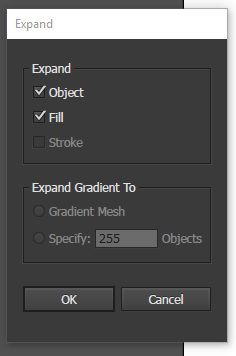
And either of these options will turn your text into an object!
What if my designer sent me a file without expanded fonts and I don’t have a way of contacting them?
No worries, friend! We have a wonderful work around we can use if this is the case. We do appreciate all you artists who can take the time to expand fonts for us but for those who are unable to here’s a little trick we’ve learned.
Create a new document, File > Place and find the PDF with all those missing fonts.
Once placed it will look something like this:
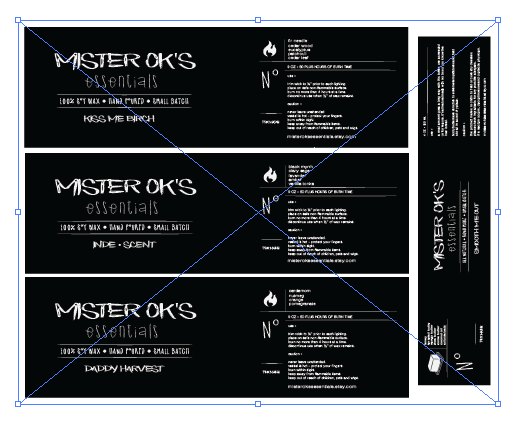
Now it’s time to Flatten Transparency. Go to Object > Flatten Transparency and select the following settings:
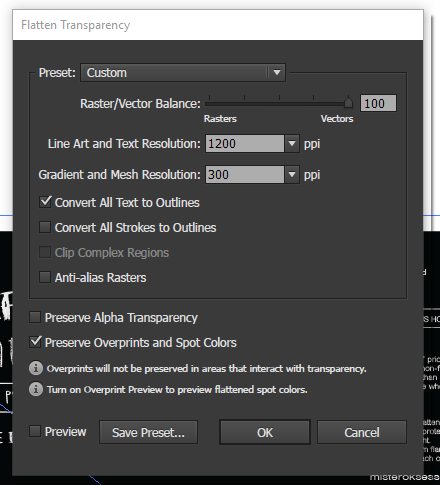
Now all those unsaved fonts will be turned into outlines and the PDF file is now usable 🙂
Thanks for reading along!